Connect Adyen
SharePay takes each share of a split on your own Adyen merchant account, with your own API credential. The money settles to you and every payment appears in your Adyen Customer Area and reports, exactly like your other payments. SharePay never holds the money. SharePay tells your shop the order is paid through its own webhooks, as it does for every business.
Do this in test mode first: switch the SharePay dashboard to test mode and use your Adyen test account. Live Adyen payments on SharePay open once we have finished our own end-to-end run on Adyen's test platform; until then the connect screen tells you so.
What you need
- Access to your Adyen Customer Area with permission to create merchant accounts and API credentials. For test mode, a free Adyen test account: sign up.
- The owner or an admin role in SharePay.
1. Create a merchant account for SharePay
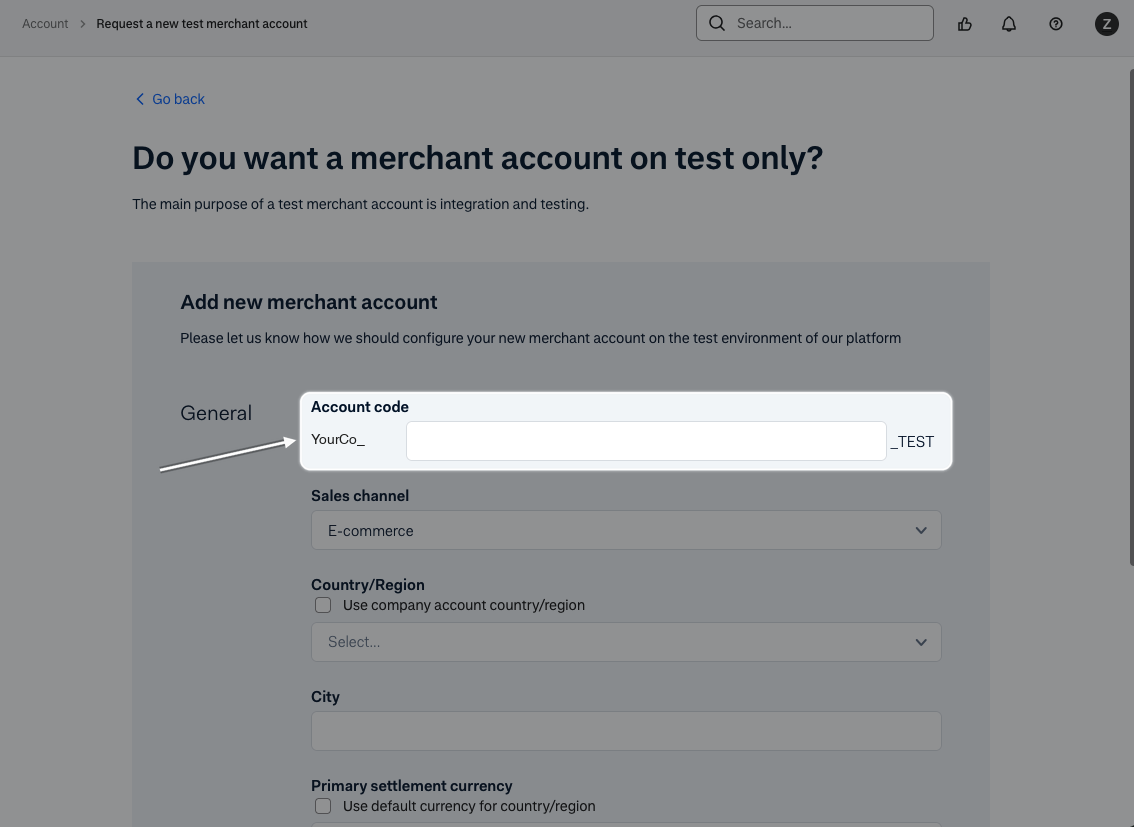
In your Adyen company account, create a new merchant account just for
SharePay, for example YourCompanySharePay.
Adyen: manage your account structure
A merchant account just for SharePay keeps everything separate: only SharePay's payments land on it, your own webhooks and reports carry on untouched, and the credential you give SharePay in the next step cannot touch your main account. Money still pays out to the same bank account as the rest of your business.
In Adyen's test environment, creating a merchant account is self-serve. In live, you usually request it from Adyen, and it can take a few days, so do this early if you plan to go live.
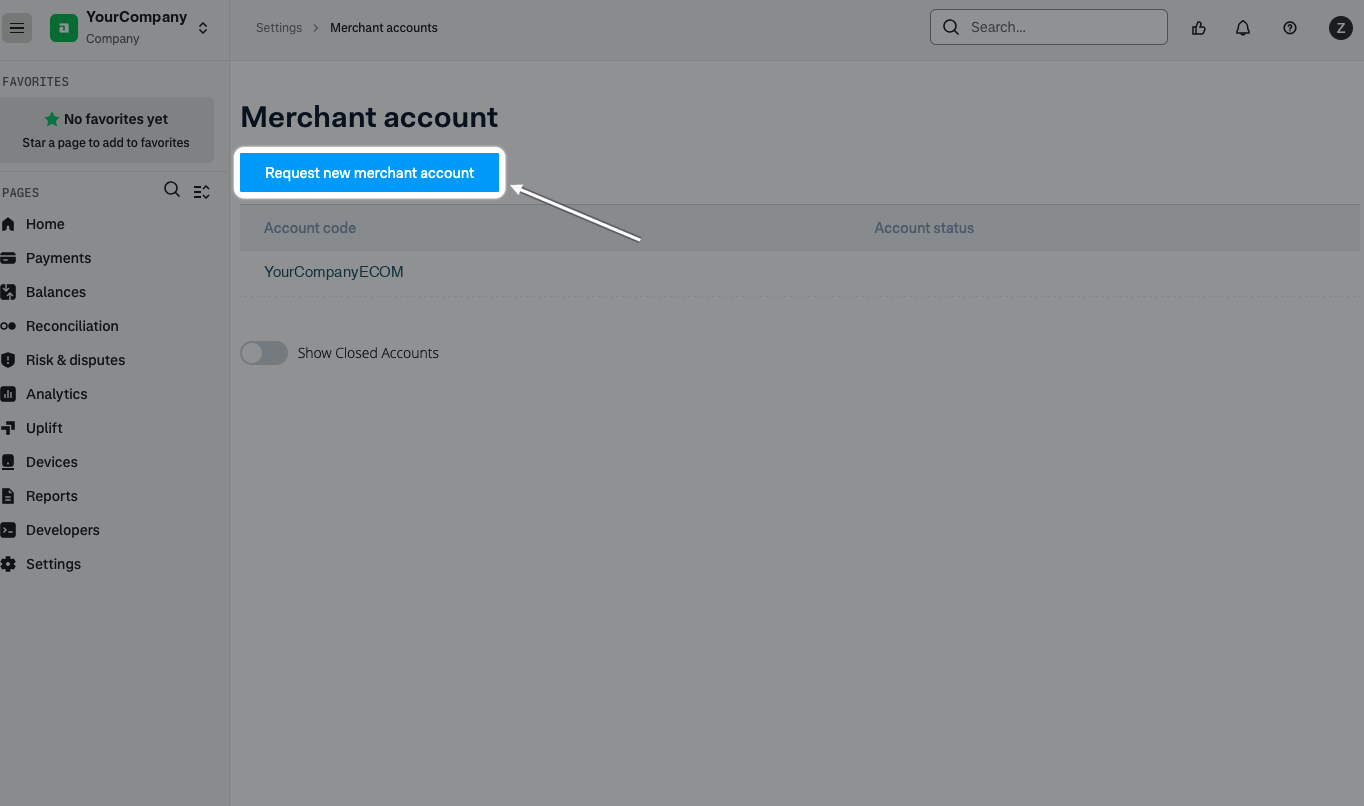
In the Customer Area, open Settings > Merchant accounts and choose Request new merchant account.
Using an existing merchant account instead. You can skip this step and
give SharePay a credential on a merchant account you already use. SharePay's
payments will then also arrive on your own webhooks alongside everything
else. They all have a merchant reference starting SP- and the metadata
source: sharepay, so you can recognise and ignore them.
2. Create one API credential for SharePay
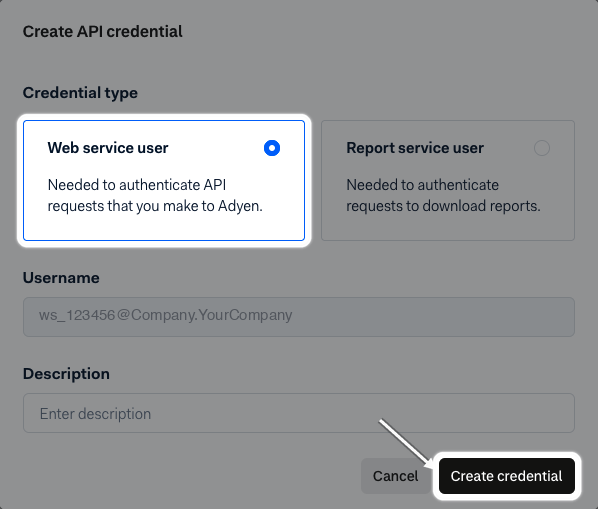
In your Adyen Customer Area, go to Developers > API credentials and create a new credential of type Web service user, just for SharePay, scoped to the merchant account from step 1. Adyen: API credentials
Give it these roles and no others (Adyen: roles):
| Role | Why SharePay needs it |
|---|---|
| Checkout webservice role | To place, capture, release and refund the holds for each share. |
| Management API: Webhooks read and write | So SharePay can add its own webhook to your merchant account, and remove it when you disconnect. |
| Management API: API credentials read and write | So SharePay can allow its payment page to show Adyen's card form for this credential. |
| Management API: Accounts read | So SharePay can find your merchant account's live address itself. Read-only. |
If your company cannot give a credential the Webhooks and API credentials roles, give it the Checkout webservice role only and follow Set it up by hand after step 3. Without the Accounts read role, SharePay asks you for your live URL prefix and region when you connect in live. A credential with only the Checkout webservice role cannot read its own merchant account either, so you type the merchant account yourself.
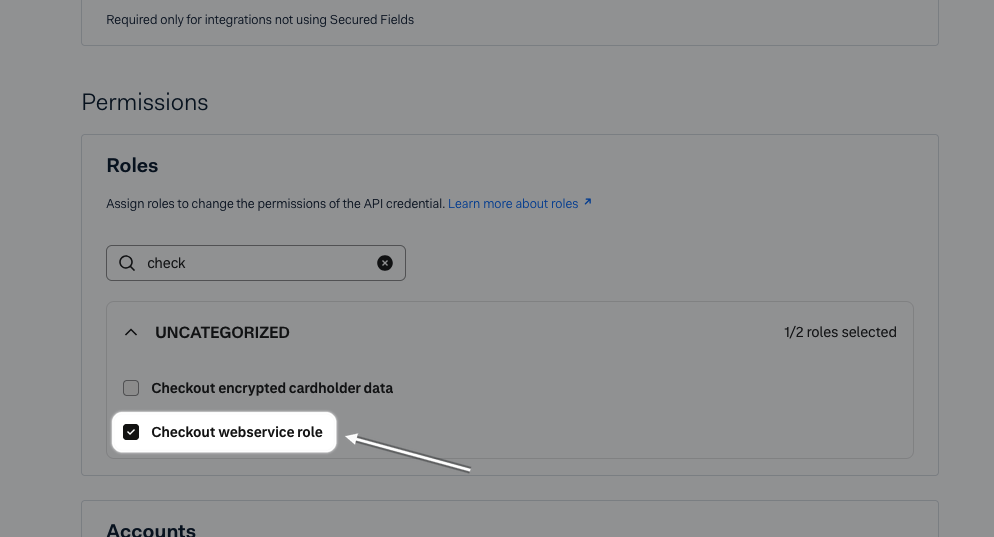
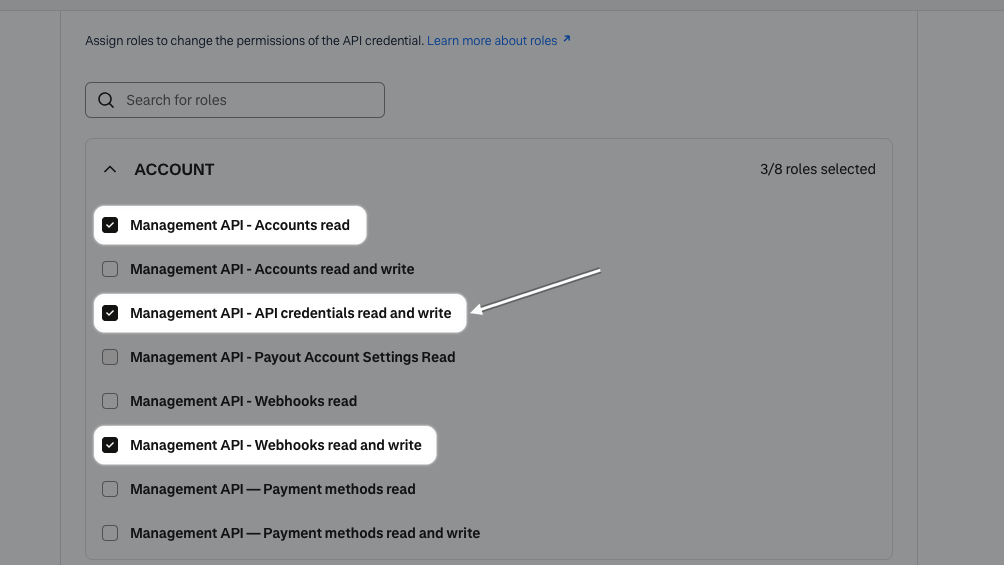
Untick anything else Adyen ticked for you, such as the POS roles. SharePay needs these four roles and no others.
Limit the credential as far as Adyen lets you:
-
One merchant account. Give it access to the merchant account from step 1 (or the existing one you chose), and no other.
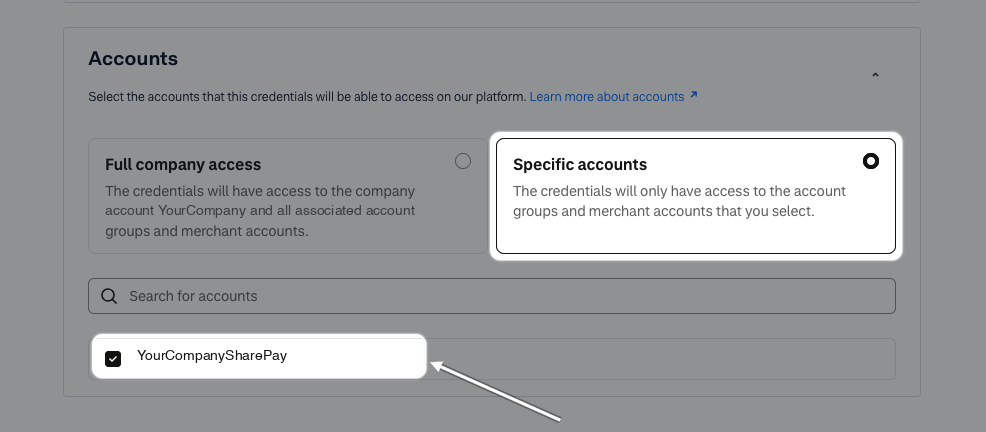
Leave Allowed IP range empty. It only accepts IP addresses, and SharePay's may change when we move or scale our servers, which would stop your payments until you updated it. The API key is what protects the credential. If your security policy requires an IP allowlist, contact us first so we can tell you before our addresses change.
3. Copy two values
From the same credential:
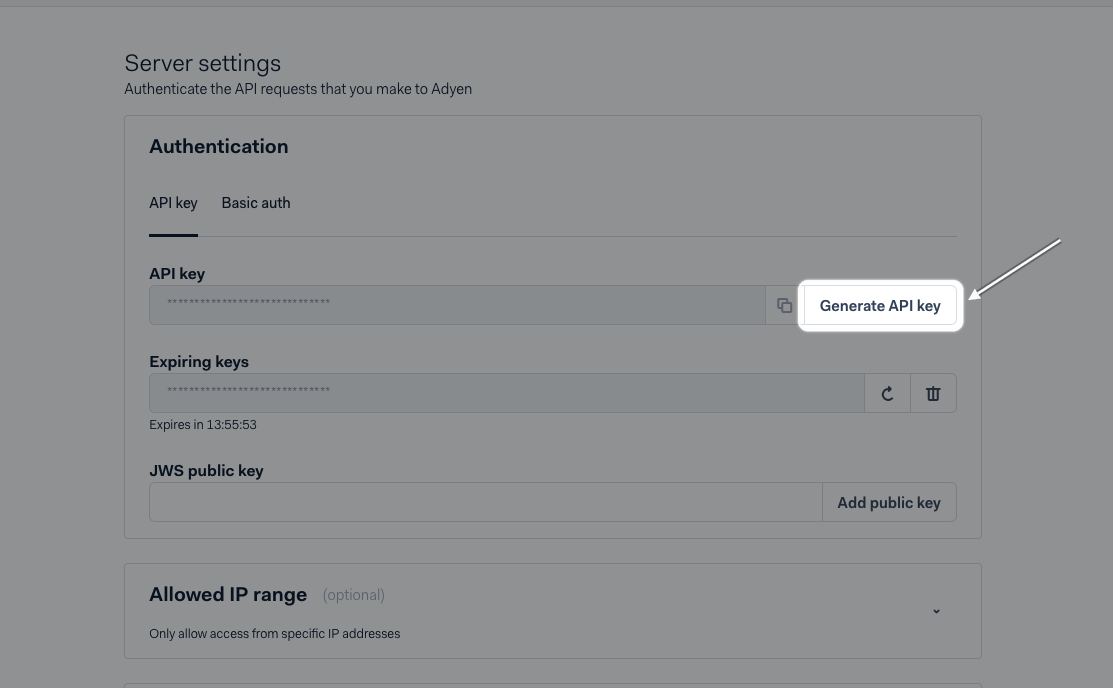
- API key: under Server settings, generate the API key and copy it. Adyen shows it once.
- Client key: under Client settings, copy the client key. It starts
test_on a test account andlive_on a live one. Adyen: client key
That is all. SharePay reads the merchant account from the credential, and for a live connection it also finds your live URL prefix and region. Adyen: live endpoints
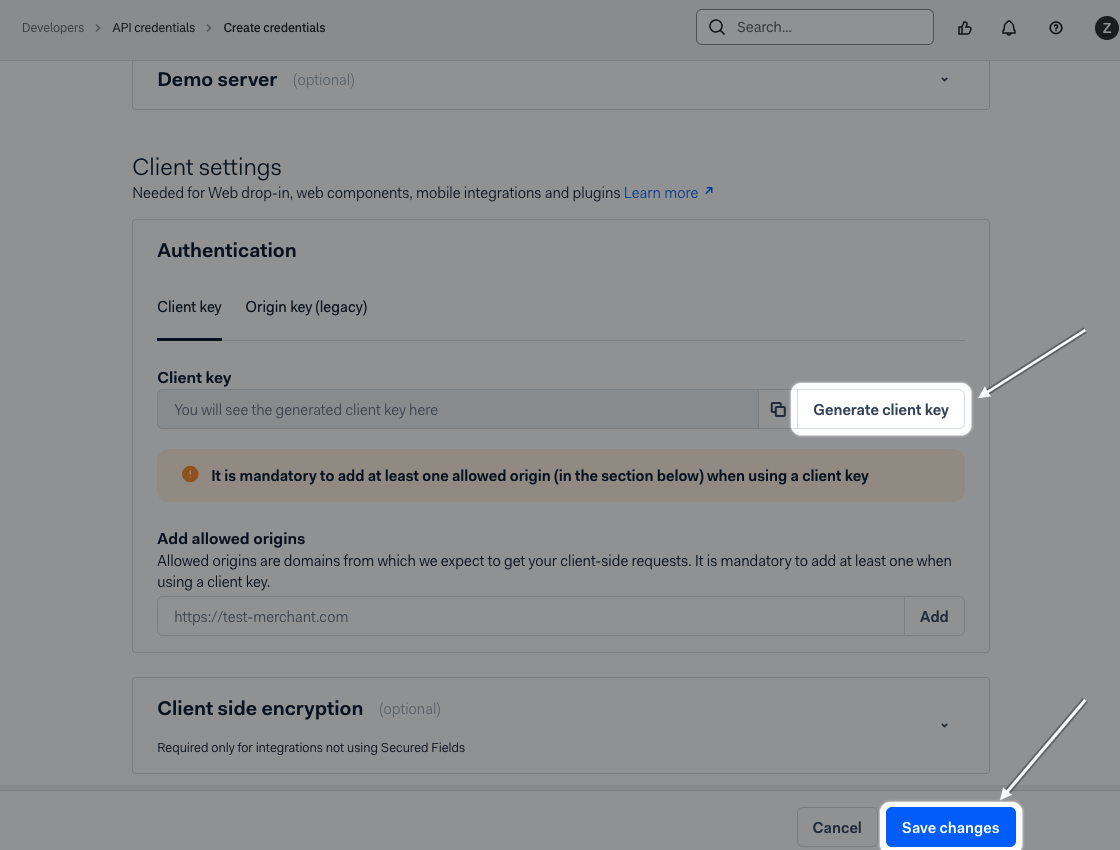
You don't need to add an allowed origin here yourself: SharePay adds its own
when you connect. If Adyen won't let you save without one, add
https://share-pay.co.uk.
4. Connect in SharePay
In the SharePay dashboard, go to Settings, Processors and choose Connect next to Adyen.
- Confirm it's you. Choose Email me a code and enter the code we send to your SharePay email address. Changing where payments go always needs a fresh code.
- Paste the API key and client key.
- Choose Save and connect.
If the credential can use more than one merchant account, SharePay asks Which merchant account? and lists them. Choose the one for SharePay and choose Save and connect again. To move a connection to another merchant account later, choose Change merchant account; like any change of where payments go, it needs a fresh code.
In live, if SharePay cannot find your live address (usually because the credential lacks the Management API: Accounts read role), the screen says so. Add the role and save again, or open Enter the live URL prefix yourself and enter the prefix from Developers > API URLs > Prefix and your account's region.
SharePay then, on your Adyen account and with your credential:
- adds its own Standard webhook, pointing at
https://api.share-pay.co.uk/api/connectors/adyen/webhook, generates its HMAC key and keeps it sealed, and runs Adyen's webhook test; - adds
https://share-pay.co.ukto the credential's allowed origins, so the card form can load on SharePay's payment page; - checks the credential with a real, read-only call to Adyen.
Your existing webhooks are not touched and keep receiving everything on the merchant account they are set up for.
SharePay Settings, Processors, Connect Adyen, after a successful connection.
Your keys are encrypted as soon as they reach SharePay, and no screen ever shows
them again: only a mask such as ****7F2A. To change one, paste a new one.
Set it up by hand
Only if the credential could not have the Management API roles. The connect screen names the role that was missing.
- Allowed origin. On the credential, under Client settings, add
https://share-pay.co.ukto Allowed origins. Without it the card form on SharePay's payment page stays blank. Adyen: allowed origins - Webhook. Go to Developers > Webhooks, create a Standard webhook
for your merchant account with the URL
https://api.share-pay.co.uk/api/connectors/adyen/webhookand the JSON format. Adyen: set up webhooks - HMAC key. In that webhook's Security settings, generate an HMAC key and copy it. Adyen: HMAC
- In SharePay's connect screen, open Setting up the webhook yourself, paste the HMAC key with the other values, and choose Save and connect.
Adyen Developers > Webhooks, the Standard webhook's URL and Security settings.
What your customers see
Each person in the split opens their SharePay payment link and enters their card in Adyen's own card form, with 3-D Secure where their bank asks for it. Their card is held, not charged, until everyone has paid; then every share is captured together. If the split does not complete, every hold is released. A customer pays only their own share; SharePay's fee is billed to you monthly.
Disconnecting
Choose Manage on Adyen in Settings, Processors, then remove it. SharePay deletes its webhook from your Adyen account and deletes your keys. You cannot remove Adyen while a split on it is still open, because the holds on your customers' cards need it to be captured or released.